This page updated 22 Jan 2012
Version note: Applies to TMG 8 & 9
TMG offers a long list of features which enable the user to customize the workspace to best fit each user's preferences, expedience level, computer equipment, and the specific activities being undertaken. In this article I will discuss a number of these features, and suggest when they might be useful. If you have not explored all the options available, scanning this may uncover some that would be useful to you.
Topics Included in this Article |
|
| Selecting and arranging the visible screens | |
| Setting font sizes, screen colors, and sorting | |
| Color coding people for any purpose | |
| Applying color coding to various types of Tags | |
| The features you want at the touch of a button | |
| Recovering the space taken by four buttons in the Details window | |
| See everyone linked to the current person | |
| Keep it simple or see it all | |
| Include flags, more tags, or make it simpler | |
| Tabs or all on one screen | |
| Keep data entry simple or see more options | |
| Opening multiple copies of TMG | |
When you open TMG, you probably don't see this:
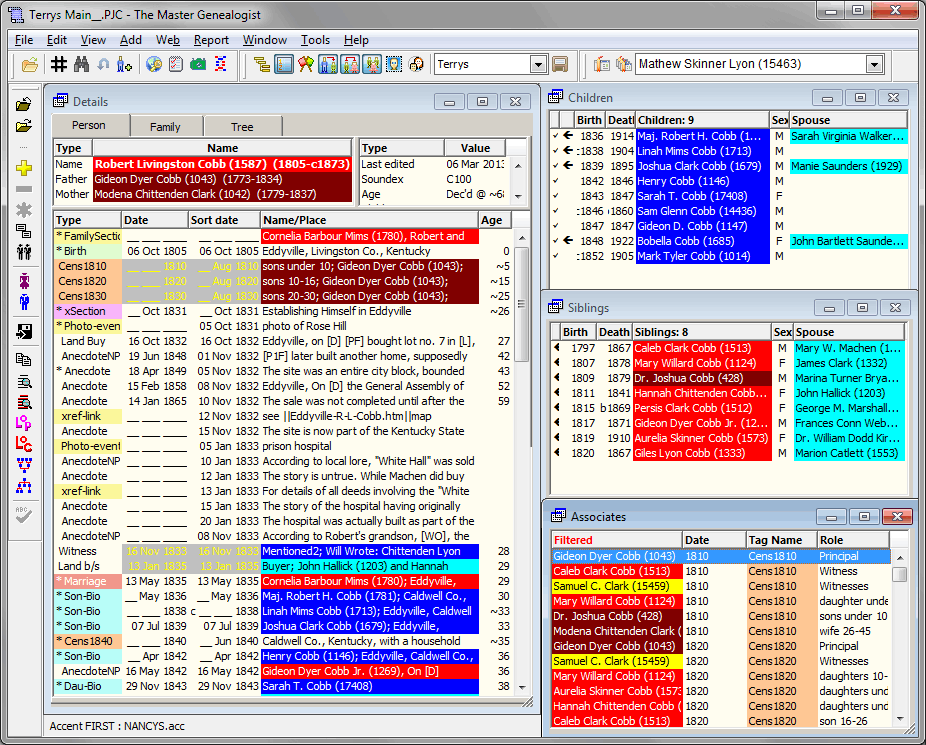
The screenshot above is similar to the way my copy of TMG generally appears. Why does your screen look different? Because I have customized my basic layout to fit my preferences, work habits, and screen size; added a custom toolbar so my most oft-used features are a single click away; and applied accents to color-code my ancestors, cousins, and more. I'm not suggesting you would want to see the same screen I do, but hopefully the sections below will suggest some ways you can make your copy of TMG work best for you.
You can adjust the size of the main program window on your screen (you may not want it to fill the whole screen). You can select which individual windows that will display within the main window, and set the size and position of each of them. You can adjust the widths of columns in many windows. You can select which toolbars will be visible, and their position on the screen. Each such arrangement created this way is called a "Layout." You can save your Layout so it will appear when you open TMG next time. You can even save a number of different Layouts for different types of work you do and recall them when needed. For details, see my article on Working with Layouts.
You can adjust the font type and sizes used in many of the individual windows, as well as background colors, and in some cases the order items are listed:
List Fonts - many of the windows are "Lists" - the Person View in the Details window, the Children and Siblings windows, the Picklist, and many other windows such as Master Source List, List of Citations, etc. You can set the font type used for these lists and the size of that font, in Preferences > Program Options > Lists. Enter the desired size in the "Minimum font size" field. (You can set a minimum/maximum range for the font size if you choose the "TMG 5/6 method of window resizing" at Preferences > Program Options > Other.)
Tree and Person View Fonts - can also be set, but work a bit differently. They always adjust according to the size of the window, but you can adjust their starting point in Preferences > Program Options > Other. You may need to experiment with this setting a bit to get the size you like.
Prompt/Warning Font size - you can set the size of the font used in the prompt and warning screen in Preferences > Program Options > Other.
Window Colors - you can set the background colors for many windows and lists, under Preferences > Program Options > Color. By default the colors from your Windows system settings are used, but you can choose custom colors, or even have each window a different color.
Flags - you can control which flags appear in the Flags Window, and in what order. To do that, right-click on the Flags window to open Flag Manager, where you can move individual Flags up or down in the list, as well as disable any you would rather not see.
Other Info Box - the little box next to the names at the top of the Person View is called the "Other Info" box. It displays a long list of information about the current focus person, but only the first three items are visible without scrolling. You can control the order of the items in that list, and thus which appear at the top. Right-click in that box and choose "Customize 'Other Info' Box..." to set them as you prefer.
The term "Accent" refers to color-coding the names of people when they appear in the various windows, and in the expanded Picklist. See the screenshot above for some examples of Accents used in the main windows, and the section below on Picklists for examples of their use in that screen. Accents are a great help in seeing at a glance such things as how people are related, who has not yet been reviewed after an import or in a cleanup effort, who was born in a specific place, or most any other characteristic you might find helpful.
Accent schemes can be named and saved, and later recalled, making it easy to keep several different sets of Accents for different purposes. For example, I have one that accents my wife's ancestors according to how close they are to her direct line, and a similar one for my ancestors. Switching between them is simple, and can be made even easier by adding buttons to the custom toolbar.
See my article on Accents for details on how to set up this very useful feature.
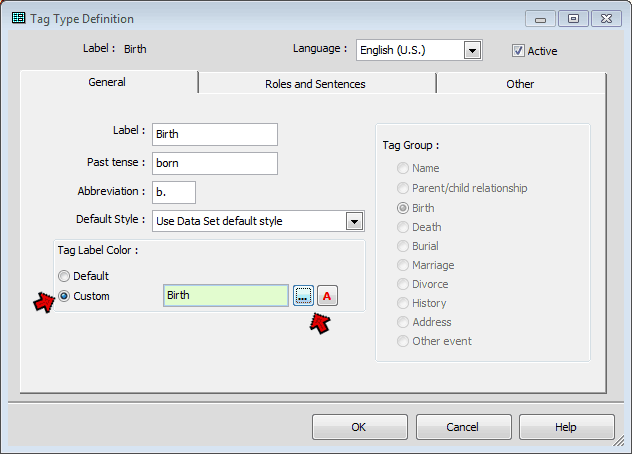
The Accents feature described in the section above applies color codes to the names of People when they appear in various windows. The Tag Label Color feature allows you to mark the labels of various types of Tags with color. This makes it easy to spot particular types of Tags in a list, such as in the Details window. To apply label colors to a Tag Type, open the Master Tag Type list from the Tools menu, select the Tag Type you want to work with, and double-click it or click Edit to open the Tag Type Definition screen:
In the Tag Label Color box, select Custom, then choose the colors by clicking the "..." button for the background or the " A " button for the text. Choose the desired colors from the Color screen that opens. Tag Label Colors must be enabled in Preferences > Current Project Options > Colors in order for them to appear in the screens, but when you set colors for your first Tag Type a pop-up box will offer to do that for you.
Examples of some of the Tag Types I colored can be seen in Details and Associates windows in the screenshot at the top of this page. They include:
Some restraint is called for in designing a color scheme. It is easy to apply more different colors than can be recalled.
TMG comes supplied with eight handy toolbars to allow specific operations with just the click of a button. Only three of them, "Standard," "Layout," and "Tag Editing" are displayed in the standard Layout. You can see the others listed, and turn them on or off, by either right-clicking on any toolbar, or using the View > Toolbars menu. In addition, you can create custom toolbars that provide functions not available on the standard toolbar. A combination of standard and custom toolbars is illustrated in the screenshot at the top of this article.
Toolbars can be turned on or off, they can be located in any desired position on the main TMG window, and the size of their buttons changed. Details are discussed in my article Using Toolbars.
By default, there are four buttons in the Details window that are supposed to aid in working with Tags, as shown below. The problem is they take up a lot of screen space that might be better used to display useful information. They can be turned off and
you can use the Toolbars or keyboard shortcuts save space.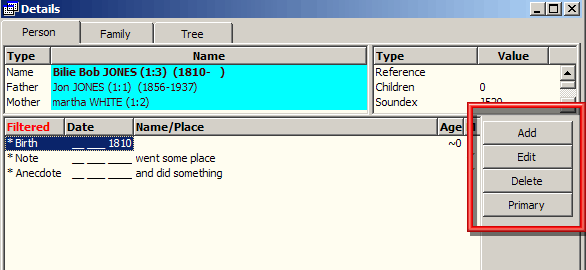
My recommendation is to turn off the buttons in the Details window. In Preferences > Program Options > Data Entry uncheck "Use buttons for Add/Edit/Delete/Primary" and use one of the methods described below to manage Tags.
You can use menu commands: Edit, Delete, and Toggle Primary are on the Edit menu; Add Tag and commands to add commonly used Tag Types are on the Add menu.
Or, you can use the keyboard for these functions. Use F4 to add a Tag, F5 to edit one, the Delete key to remove one, and the asterisk key to toggle Primary.
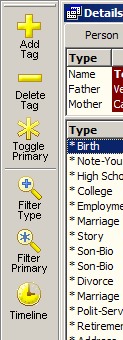
If you prefer buttons, the same functions are on the Tag Editing Toolbar, shown on the right. These buttons take up less space than default buttons, especially if you set toolbars to use "Small Buttons." Enable this toolbar from the View > Toolbars menu if it is not already part of your layout. Since it is a toolbar, you can locate it any place on your screen that you like. After locating it where you like, save your Layout so it will appear in the same place next time you open TMG. For more on Layouts, see my article on Working with Layouts.
The Associates window allows you to see at a glance all the people linked to the current focus person. Perhaps more useful is the ability to navigate to any one of them by double-clicking on their names, as you can do with the Children and Sibling windows, and in the Person View.
The Associates window lists every person attached to any Event Tag in which the current focus person is attached. Since the "other Principal" is already visible in the tags in the Person View, this window is really most useful when you have Tags that include Witnesses. Here is an example of the Associates window for a person with a number of Tags with attached Witnesses:
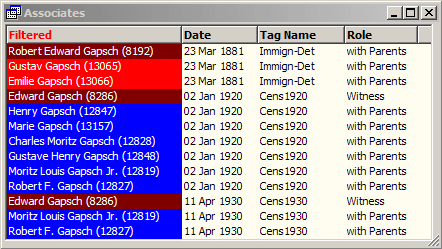
Note that the list includes the name and ID# of each person, the date and name of the Tag, and the Role assigned the person. I find the Role to be especially useful because I use Roles with Census, Moved, Immigration and other Tags, and the Role generally tells how each person fit into the event.
The Associates window is not part of the Standard Layout. To use it, click its icon on the Layout Toolbar, or use the Window > Associates menu command. Arrange the window as you like, adjusting other windows as necessary. When you have it as you prefer, save the Layout to have it appear when you re-start TMG.
There are a number of options to control the display in the Associates window, all available from the right-click menu. The settings I find most useful are:
Of course other users may find different setting more useful. Be sure to explore the available options.
The Picklist is one of TMG's handier tools. It can be used to navigate from
person to person, and to pick people to be added as Principals, Witnesses, and
about anywhere else you might select a person. You open it with the F2 key,
or by clicking the "search" button: 
You can use F2, or the button on the Standard toolbar when viewing the main screens to navigate to a different person. In just about any screen where a person is to be selected, you can place the cursor in the field where the ID# is to be entered, and press F2 or click the search button that appears next to the field.
The Picklist is one of the more resource intensive features – depending on the size of your Project and the capabilities of your computer system, opening and navigating it may be slower than you like. TMG addresses this by providing a choice of two styles of Picklist: Simple and Expanded. You chose between them in Preferences under Program Options > Lists. The simple version is used by default.
The Simple Picklist emphasizes speed of operation. In exchange, you give up some features:
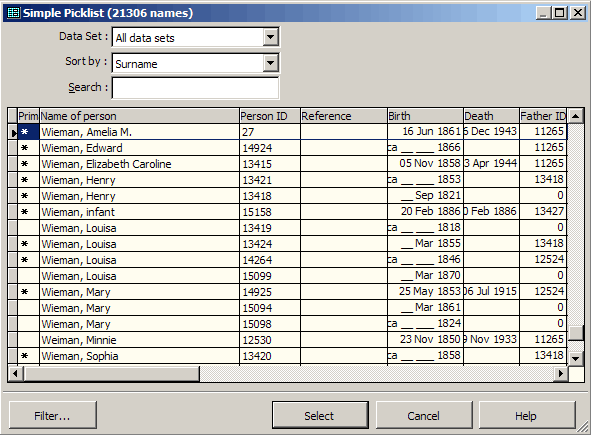
Accents are not shown, and you cannot specify which information will be displayed for each person (but you can adjust column widths, even to zero, effectively hiding a column).
The Expanded Picklist emphasizes flexibility and information, in exchange for some speed of operation:
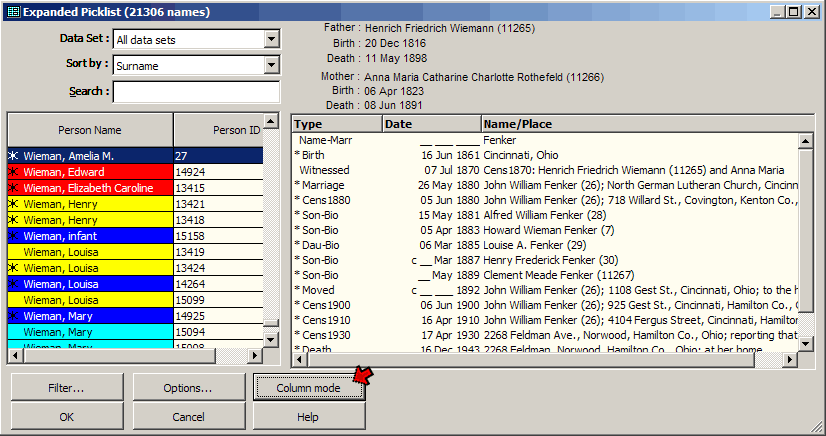
If Accents are enabled, they will appear in the Picklist. The default Event List mode, which shows a list of events for the selected person (sort of a miniature version of the Person View), is shown above. Clicking the "Column mode" button switches to the version below:
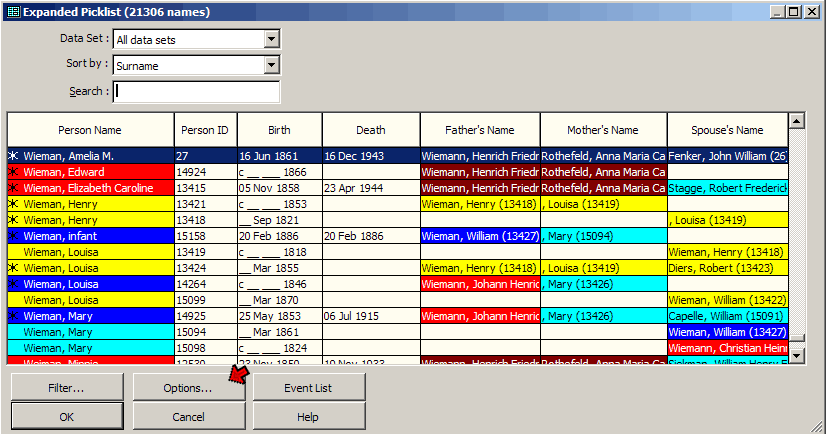
In this mode brief information about each the persons, including parents and last viewed spouse, is listed. You can select which columns appear by clicking on the Options button.
I find the column mode of the expanded Picklist to be far more useful than the default simple Picklist, and suggest trying it unless the size of your Project and your available hardware make it too sluggish for comfortable use.
The Add Person screen is used to add new people to the Data Set. As discussed in my Data Entry Tutorial, it not only creates the new person, but also creates for that person a name tag, usually either parent/child relationship tags or a marriage tag, and optionally birth and death tags. You can customize the Add Person screen to better suit your working style, and even change those customizations from time to fit a particular task at hand. Available customizations include:
To access these settings open the Add Person screen (click the Add Person button and select a relationship). Then, on the Add Person screen, click on the Setup button. You then see the Add Person Template:
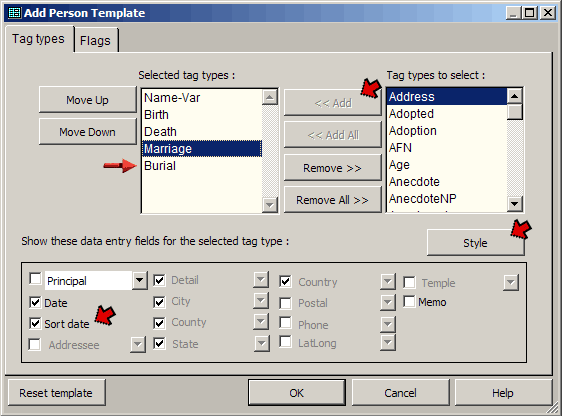
You customize the Tag settings on the Tag Types tab of that screen, as shown above. Those Tag Types that will appear on the Add Person Screen are listed on the left side (the Marriage tag only appears if the person being added was identified as the spouse of the current focus person.) In this screenshot you can see that I have:
To specify a name or place style, select the tag type to which you want the style applied, and click the Style button.
Flags are added to the Add Person screen by clicking the Flags tab, and choosing and sorting them in the same way as Tag Types are selected.
There are two versions of the Tag Entry screens. The default version has everything on a single screen, so it's easier to see all the fields at once. The other, called the "tabbed version," has Citations and Witnesses (if you use the advanced mode, below) on separate tabs. The tabbed version is intended primarily for those using low screen resolutions. But it has more space for each section and some users prefer it for that reason.
You can change between the two versions in Preferences > Program Options > Data Entry.
TMG allows data entry in two modes, "Beginner" and "Advanced." The Beginner mode hides several features that beginners generally don't use, producing a simpler, less cluttered interface for new users. The Advanced mode provides access to all the fields.
You are offered a choice of Beginner or Advanced Mode the first time you try to edit data in the new program. You can change this setting at any time in Preferences > Program Options > Data Entry.
Some advanced users prefer the cleaner interface of the Beginner mode when they don't need access the additional features. No data accessible under the Advanced Mode is lost while in Beginner Mode, but you will just be unable to access the additional fields to add or edit the data associated with them.
For more details, including screenshots showing the fields made visible in Advanced mode, see my discussion of this subject in my Data Entry Tutorial.
TMG allows you to open multiple copies of the program at the same time (computer types call each copy an "instance"). This capability allows you to:
Each copy of the program appears in its own window on your computer desktop. Depending on your monitor size and resolution setting, you may be able to position the copies so all are visible at once. Or, you may want to position them so they partially overlap, and then click on one or the other to bring it into full view. You will probably need to adjust the size of the main program window, and perhaps change which screens are open, to get a satisfactory arrangement on your monitor. If you use this capability often, you might want to save special Layouts for the purpose – see Layouts, above.
The easiest way to open a second copy is to select the Project you want to see in the second instance from the list of recently open projects at the bottom of the File menu. Or, use the File > Open Project command to find the Project you want to examine. When asked "Would you like to close the current project?" answer No. Then, the new project (or second copy of the current project) will open in a new instance, while the existing instance will remain open.
The only restriction is that you can't open exactly the same record - for example the same tag for the same person - for editing in both copies. You don't even have to worry about that because TMG will manage that issue for you. If you try to open a second copy of the same record, TMG will refuse and offer to allow you to open the second copy as "read-only," that is, non-editable.
| ReigelRidge Home | Terry's Tips Home | Contact Terry |
Copyright 2000- by Terry Reigel