This page updated with minor changes 5 May 2006
Version note: Applies to TMG 8 & 9
Source Elements are the fields into which you enter the information about a source, such as author, title, date, etc. TMG then assembles these Elements into the various kinds of source notes in reports using the directions in the Output Templates.
TMG organizes the Source Elements into Source Element Groups. This article tries to clarify the sometimes confusing relationship between Source Elements and Source Element Groups. Understanding this relationship is essential if you intend to add Source Elements to your source templates.
This article also discusses the more advanced topic of creating custom Source Elements, below. Other related articles are:
Many users have difficulty understanding the relationship between Source Elements and Source Element Groups, and how these concepts impact the editing of Source Templates. In my opinion, part of the problem is the very names Source Element and Source Element Group. They are not very descriptive of the relationship between the two things, and are therefore not helpful in understanding what they mean.
What TMG calls Source Element Groups I think might better be called "Real Source Elements." They are the fields where the information you enter into the Source Definition is actually stored.
What TMG calls Source Elements, I think might better be called "Source Element Aliases," or perhaps "Source Element Labels." They are simply more user friendly labels for the data fields.
These alternate labels, or aliases, allow the same Real Source Element, or "Group," to be used for very different types of data in different Source Definitions. Because of the use of these aliases each Source Definition can have a more descriptive label for that Source Element that describes what kind of data is to be entered in it. For example, the Author data field can be called "Author" in one Source Definition, "Agency" in another, and "Informant" in a third.
Pictures help some people, so let's try this one. Imagine that we have a Data Set with three sources, and that a simplified view of the TMG file containing the source definition looks like this:
| # | Abbreviation | Source Type | Source Element Groups ("Real Source Elements") | ||
| Author | Date | Publisher | |||
| 1 | Smith History | Book, Authored | Author Smith, Robert J |
Publish
Date 1893 |
Publisher Raymond House, Inc. |
| 2 | Survey of Rockford Settlement | Book, Agency | Agency Round Table Comm. |
Publish
Date Mar 1920 |
Publisher County of Rockford |
| 3 | J J Jones Interview | Interview | Informant Jones, John J |
Interview
Date 7 Jul 1985 |
|
Each row in the table records one source. Each source has a number, and an abbreviation assigned by the user. Next we see the Source Type selected by the user.
But for our discussion here, the important part is the three colored columns that follow. They represent three of the 25 or so "Source Element Groups" that can be used for each source. They are what I call "Real Source Elements." Note that they are not groups at all, but are really just fields were information is stored.
Note that two things are stored for each Source Element Group:
The fact that the so-called "Source Elements" are simply labels, or aliases, for the "real source elements" explains why each "Source Element Group" can only be used once for each source. No matter what the field is labeled, each "Group" is still only one field, and thus can hold one item of data.
Also, note that not every Source Element Group is used for each source. In our example, the Publisher Group is not used by the third Source. In real source definitions, most of the 25-odd Groups are unused.
As is hopefully evident from the above discussion, the Source Element Groups, or "Real Source Elements," are fixed by the design of the program and its data files. Like our example table with three Source Element Groups, the actual tables in TMG have a fixed number of Groups – about 25 of them. We cannot add more, nor can we change their names.
What we can work with are the "Aliases" we use for them; what TMG calls Source Elements. We can add any number of these aliases, and label them anything we like. We can, however, only assign each alias to one real element. On TMG's screens, this means each Source Element we create can only be assigned to one Source Element Group.
The whole idea of having and creating new "Aliases" is to make it easier for us to recognize what data is to be entered into a particular field in a Source Definition screen. We could design a Source Type for example that uses the "Date" source element for a street address. But if we did, how would we remember what to put in that element? If we were to choose to use the "Date" element for that purpose, better to assign some useful label, say "St Address" to it so we can recall later what to enter there. We do that by creating custom Source Elements, as is described in the following sections.
Having defined the terms, now we should look more carefully at how Source Element Groups ("Real Source Elements") are used. First, we should note that there are three different kinds of them.
While you could create custom Source Elements ("Source Element Aliases") for the Repository and Citation elements, there's not much point in it. These labels never appear anywhere except in the Output Templates of the Source Definition. You will never seen them when entering data. So for the rest of our discussion, we will only consider the 25 or so Source Elements in the first group above – those whose data are entered on the Report Definition Screen.
We would generally create a custom Source Element when none of the Source Elements available adequately describe the data you want to enter in a Source Definition.
To create a new Source Element, use the Tools > Source Elements menu to open the Source Elements screen. Click Add to open the Add Source Type screen:
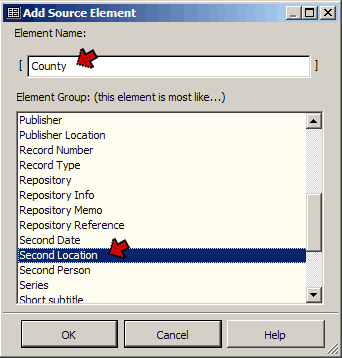
The easy part is entering the name we want to use, in the upper field. Here I've entered "County." You can use up to 20 characters, and spaces are allowed. Upper and lower case are displayed on the list in the Source Elements screen, but are generally ignored elsewhere. This is the label that will appear for your element on the Source Definition screen, and the name you will use for the element in the Output template.
The harder part is selecting the Group we want to assign the new Source Element to from the list below. This is were we tell TMG which "Real Source Element" this alias will be used for. Ignore the "this element is most like..." text. The Group we select has little to do with how "like" the group name seems to our intended use. Instead, consider the following:
| Group | Standard Source Types Using the Group |
File Reference |
|
Page |
|
Version |
|
Click OK when you are done to create the new Element and close the screen.
Having created our custom Element, we are ready to apply it:
| ReigelRidge Home | Terry's Tips Home | Contact Terry |
Copyright 2000- by Terry Reigel