This page updated 23 Mar 2014
Version note: Applies to TMG 8 & 9
We often find the need to record information about individuals with more than one marriage. TMG allows you to create an unlimited number of marriage tags to record these events, so the straightforward approach would seem to be to simply enter a new tag for each additional marriage. But this approach, if you use the standard Sentence Structures, can result in a less than satisfactory account in reports, along the lines of:
One can modify the Sentence Structures of the individual Marriage Tags manually to avoid this. However an easier solution, in my view, is to create some custom Roles for your Marriage Tag Type. Then when you encounter a second or third marriage, you just select the appropriate Role with a mouse click or two. If you are unfamiliar with the use of Roles my Roles Tutorial may be helpful.
Here is how I modified the standard Marriage Tag to solve this problem. I left the standard Sentence Structures for "Principal," "Witness," "Bride," and "Groom" unchanged. I added the following new Roles, with the Sentence Structures shown:
| Role | Sentence |
| First | [P] married first [PO] <[PARO]> <[D]> <[L]><, [M]> |
| Second: | [P] married second [PO] <[PARO]> <[D]> <[L]><, [M]> |
| Third: | [P] married third [PO] <[PARO]> <[D]> <[L]><, [M]> |
| Fourth: | [P] married fourth [PO] <[PARO]> <[D]> <[L]><, [M]> |
|
Use: |
|
|
Notes: |
|
A less common situation that does occur occasionally is that a couple marries, divorces, then marries again. Simply entering two Marriage Tags works but produces somewhat strange narrative text. To address this I have created another Role to deal with this situation, as shown here:
| Role | Sentence |
| Again | [P] remarried [PO] <[D]> <[L]><, [M]> |
Note that when you enter two Marriage Tags for the same two Principals, only one of them can be made Primary. As a result, this solution works only with report types that can include non-primary Tags, such as the Journal and other narrative reports. Even then you must not use the "Primary Tags Only" option. The second marriage will not appear in reports that can use only Primary Tags, such as the Indented Descendent Chart, Pedigrees, and box charts.
You can modify your existing Marriage Tag Type by copying the Roles and Sentences from this page, editing them as you prefer. Or, you can download and install a copy of my Tag Type using the Tag Type Import function.
If you choose to download you can import in either of two ways:
I recommend that you use the download only if you have not used and do not intend to use any of the "auxiliary" Roles, and that you have it replace your existing Marriage Tag. Otherwise, I recommend that you manually add the Roles described above.
If you do want to proceed with the download and import process:
Down load my custom Tag Type file here: Terry's Marriage Tag Type
You have a choice about where to save the file. You can save it in an easy-to-find location, such as on your desktop, and then locate it when you import it in Step 3 below. Or, you can save it in your TMG "Export" folder, which is were TMG first looks for it. I recommend that location if you might want to import the Tag Type again into different Projects. The default location of the Export folder is shown below, but it may differ on your system if you have customized your file locations:
Operating System |
Default Folder Location |
Windows Vista Windows 7 Windows 8 |
C:\Users\{user}\Documents\The Master Genealogist v7\Export |
Windows XP Windows 2000 |
C:\Documents and Settings\{user}\My Documents\The Master Genealogist v7\Export |
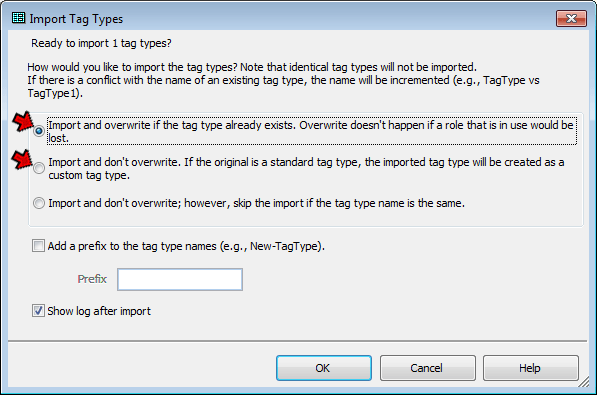
In that screen, you may choose to either:
- Replace your existing Marriage Tag Type – To do that, select the first option, "Import and overwrite if the tag type already exists." Click the OK button. If successful, you will get a confirmation message that the new Tag Type has been imported. If you have used any Roles not included in my custom Tag Type, you will receive a message that the Tag Type was not imported. You can then either create the new Roles manually (recommended), or use the alternate method below.
- Add as an additional Marriage Tag Type – To do that, select the second option, "Import and don't overwrite." The imported Tag Type will be called Marriage1 unless you check the "Add a Prefix" box below and enter a prefix, which will be applied to the Tag Type name. Click the OK button and you should get a confirmation message that the new Tag Type has been imported.
For further details on exporting and importing Tag Types, see my article Exporting and Importing Tag Types.
| ReigelRidge Home | Terry's Tips Home | Contact Terry |
Copyright 2000- by Terry Reigel